Positive, Negative, or Moderate: How Insighthread's Impact Signal Works
Every Insighthread news item carries an impact signal. Combined with its event category, it tells you what kind of event happened before you read a word.
The Insighthread Team
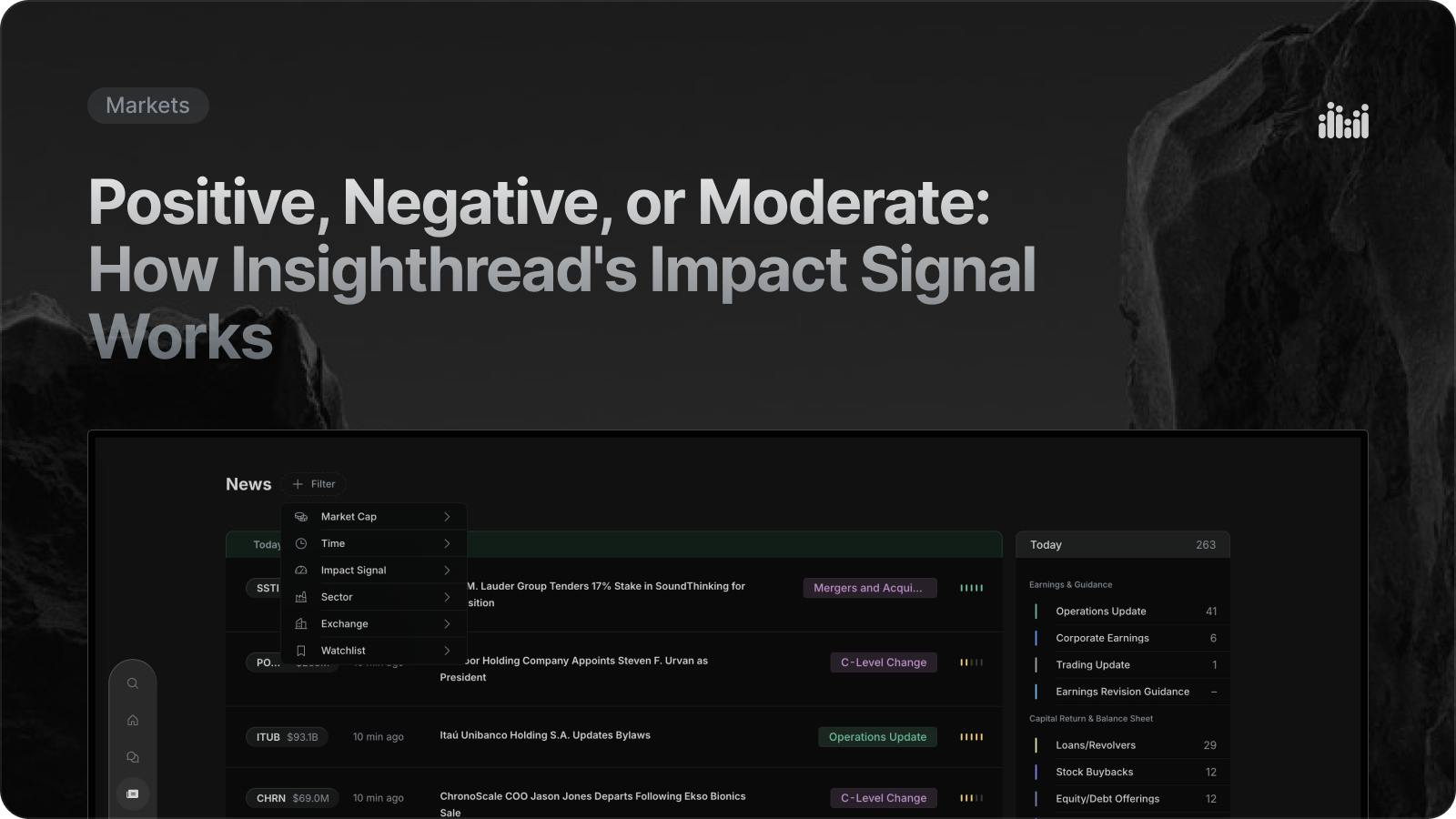
A news feed asks you to read before you know whether a story matters.
Insighthread adds two small tags to every item so you can tell first and read second.
One is the event category, and the other is the impact signal.
What the Insighthread impact signal is
Every news item generated from an SEC filing carries an impact signal.
It reads as positive, moderate or negative.
On each row it appears as a small five-bar indicator, colour-coded so you can see the direction at a glance.
It sits next to the category badge and the ticker's market cap, and the three together give you a read on the story without opening it.
Pair the impact signal with the event category
The signal tells you the direction, and the category tells you what happened.
Together they make triage quick.
An Insider Sell badge with a negative signal is a different row from a Dividends badge with a positive one.
You can tell the difference in a second, from tags alone.
Insighthread's news covers 34 event types, including Corporate Earnings, Mergers and Acquisitions, Insider Trades, C-Level Change, FDA Approval/Rejections and Legal Action.
Why market cap belongs next to the signal
Each ticker on the news feed is shown with its market cap.
That context matters.
A leadership change at a $15B company reads very differently from one at a $200M company, even when the badges match.
So the row gives you three things to scan: how big the company is, what kind of event it was, and which way it points.
Filter Insighthread news by impact signal
The impact signal is also a filter.
On the News page, the + Filter menu lets you pick Positive, Moderate or Negative, alongside Market Cap, Time, Sector and Watchlist.
Pick Negative and your watchlist, and you have a risk check on the stocks you own.
Pick Positive and Small Cap, and you are hunting for good news in smaller companies.
Selected filters show up as chips above the feed, and each can be removed on its own.
You can also include or exclude event categories, so "everything except routine insider trades" is two clicks.
A practical example of reading the impact signal
Suppose a holding moves on a Tuesday morning.
You open your feed and look at the rows for that ticker.
You see an Insider Sell badge with a negative signal, and an 8-K row beside it.
You already know what kind of event it was and which way it leans, and you have not read a sentence.
If it matters, you open the item and read the short summary, with the SEC filing behind it linked as the source.
Why the signal is a starting point, not a verdict
The impact signal is a shortcut for deciding what to read.
It is not a prediction, and it is not advice.
The underlying filing is always linked, so you can check any item against its source.
That is the purpose of the feature: less time scanning, more time on the items that deserve it.
Open the News feed in Insighthread and try filtering by impact signal on your own watchlist.